Dear Readers,
Good evening!
Trust you are doing well!!!
Today, I will be discussing one of the most important OCI services, “Notifications service” which forms a critical component of the OCI Observability and Management (O&M) framework.
Oracle Cloud Infrastructure Notifications service is a managed messaging and alerting service that helps you send notifications and trigger actions when events occur in your OCI environment. OCI Notifications is important because it ensures the right people or systems are informed and can act immediately when something changes or goes wrong in the OCI.
High level architecture:
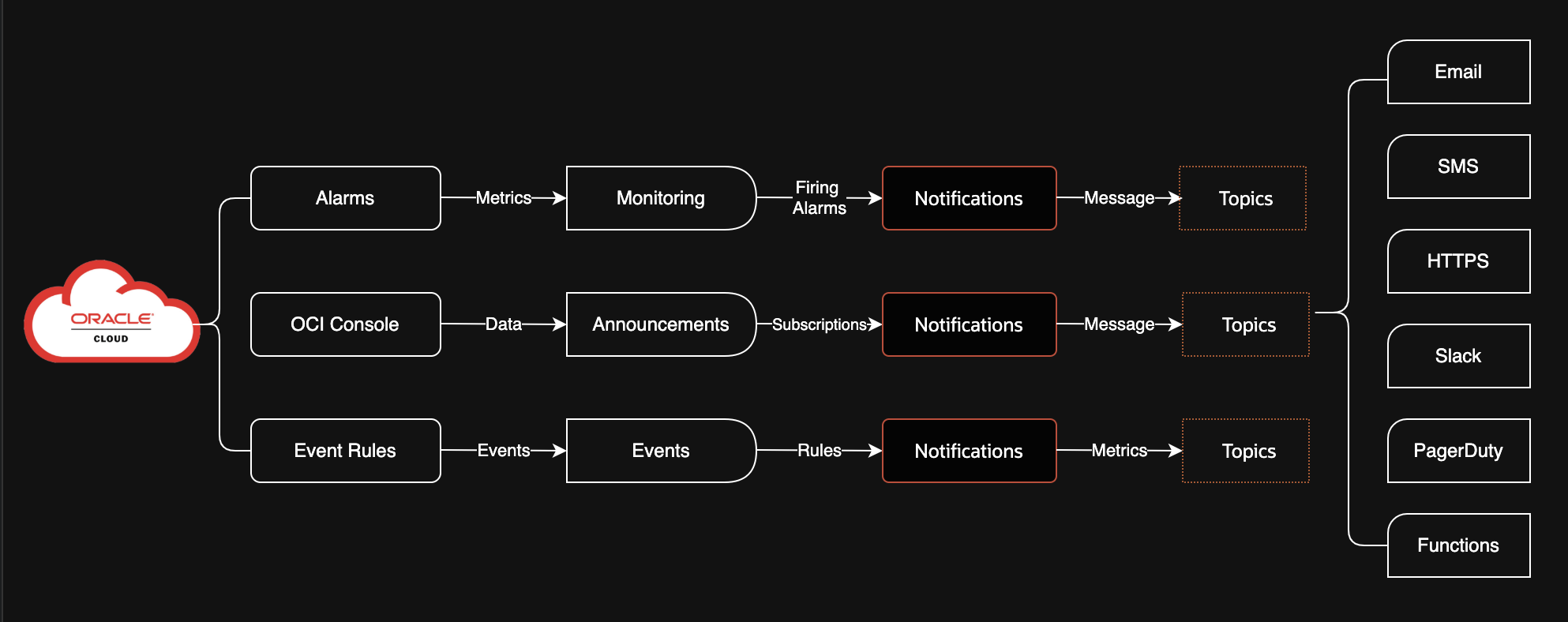
OCI Notifications Service Concepts:
Topic:
A communication channel used to send messages to subscribed endpoints. Each topic name must be unique within the tenancy.
Notification:
A configuration that enables the delivery of messages—such as alarms or event rules—by publishing them to a specified topic, where they are sent to all associated subscriptions.
Message:
The content that is published to a topic. Each message is delivered at least once per subscription. Every message sent out as email contains a link to unsubscribe from the related topic. This is how it looks at the bottom section of email notifications.

Subscription:
An endpoint for a topic. Published messages are sent to each subscription for a topic.
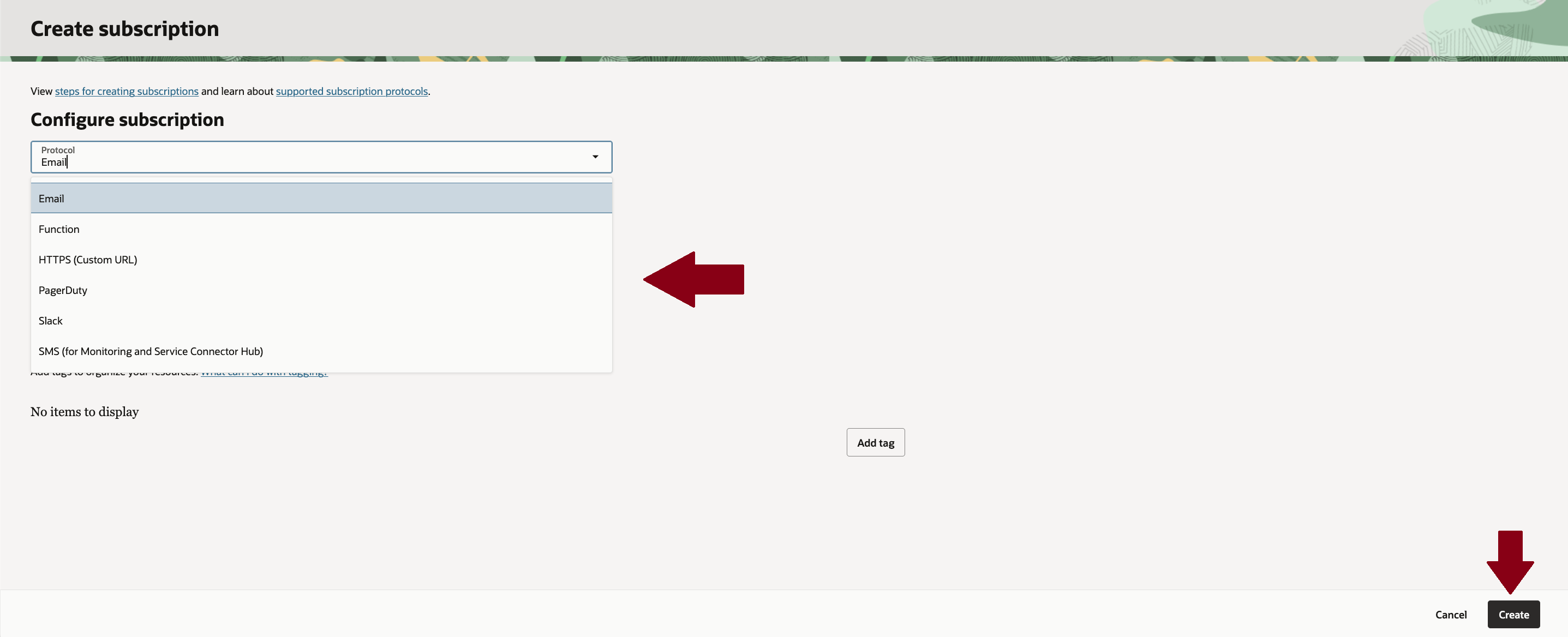
Supported subscription protocols:
Sends an email message when you publish a message to the subscription’s parent topic.
Sends a text message using Short Message Service (SMS) to the specified phone number when you publish a message to the subscription’s parent topic .
Sends specified information to customer URL when you publish a message to the subscription’s parent topic . For example URL like ServiceNow.
Runs the specified function when you publish a message to the subscription’s parent topic . For example, runs a function to resize VMs when an associated alarm is triggered.
Creates a PagerDuty incident by default when you publish a message to the subscription’s parent topic .
Sends a message to the specified Slack channel by default when you publish a message to the subscription’s parent topic .
How Notifications Works:
The Notifications service allows you to set up communication channels for publishing messages through topics and subscriptions. When a message is published to a topic, the service delivers that message to all associated subscriptions.
Workflow is as given below:
1️⃣ Event or condition occurs:
Something happens in OCI, for example:
- Alarm threshold reached such as CPU/Memory/Tablespace free space etc.
- A event triggered such as compute provision/stop/terminate.
- An error appears in logs (LOGANalytics).
- A console announcement messages appeared.
2️⃣ Message is published to a Topic
- A Topic acts like a route.
- The service (alarm/event/logan) publishes a message to the topic.
3️⃣ Topic sends the message to subscription list:
Each topic can have multiple Subscriptions, such as:
- SMS
- HTTPS URL
- OCI Functions
4️⃣ Action or notification is triggered
- Subscriber receive alerts (email/SMS/slack)
- Systems act automatically:
- Invoke Functions.
- Trigger ITSM tools.
- Start remediation workflows.
How it looks in OCI console:
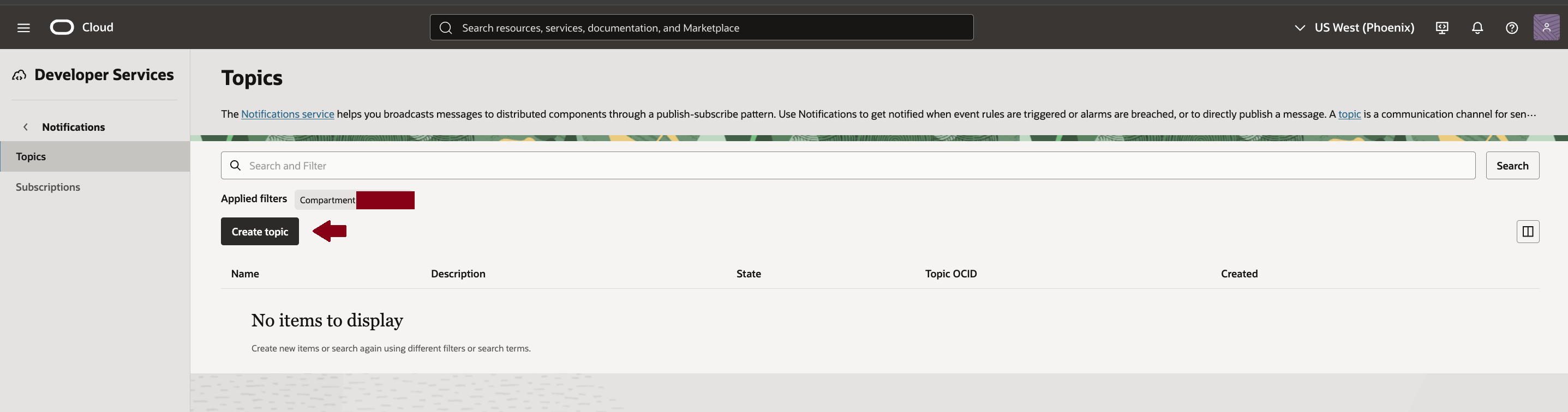
Go to Developer services in OCI console & click on Notifications below parent heading “Application Integrations”. Click on “Create topic”.
Give relevant topic name & click on “Create” button.
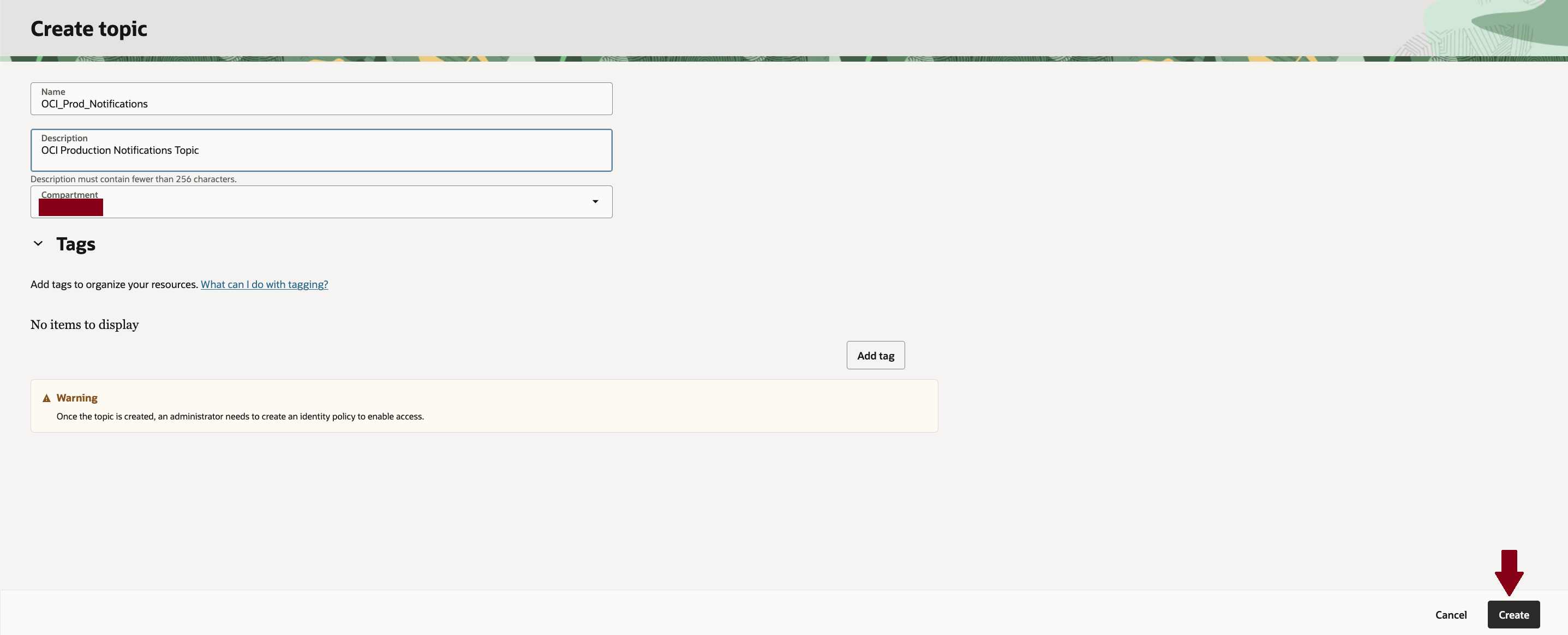
Once the topic is created, create on topic name & follow further steps.

Now click on tab “Subscription”.
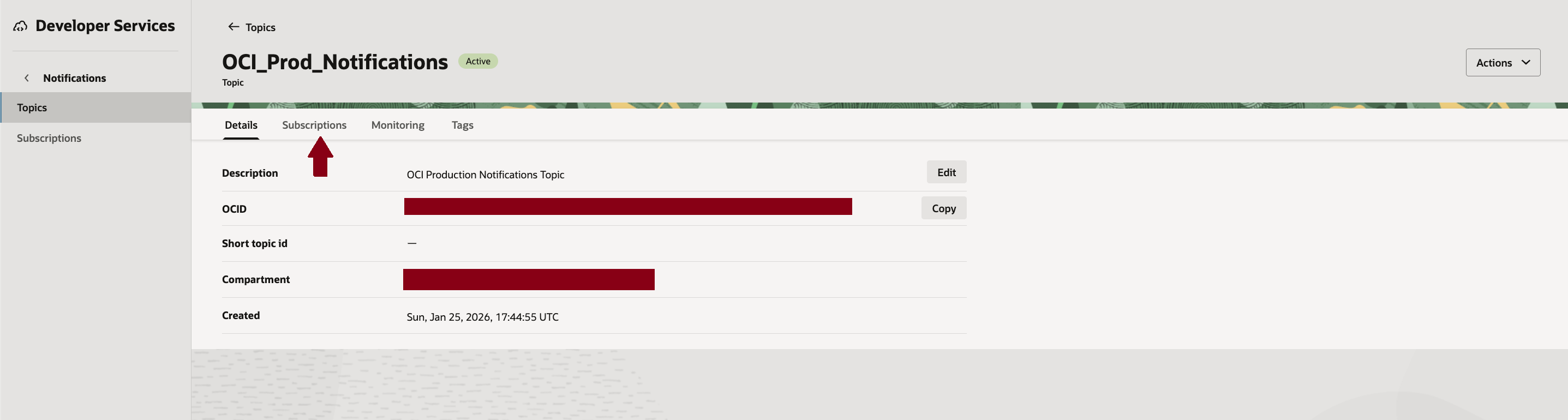
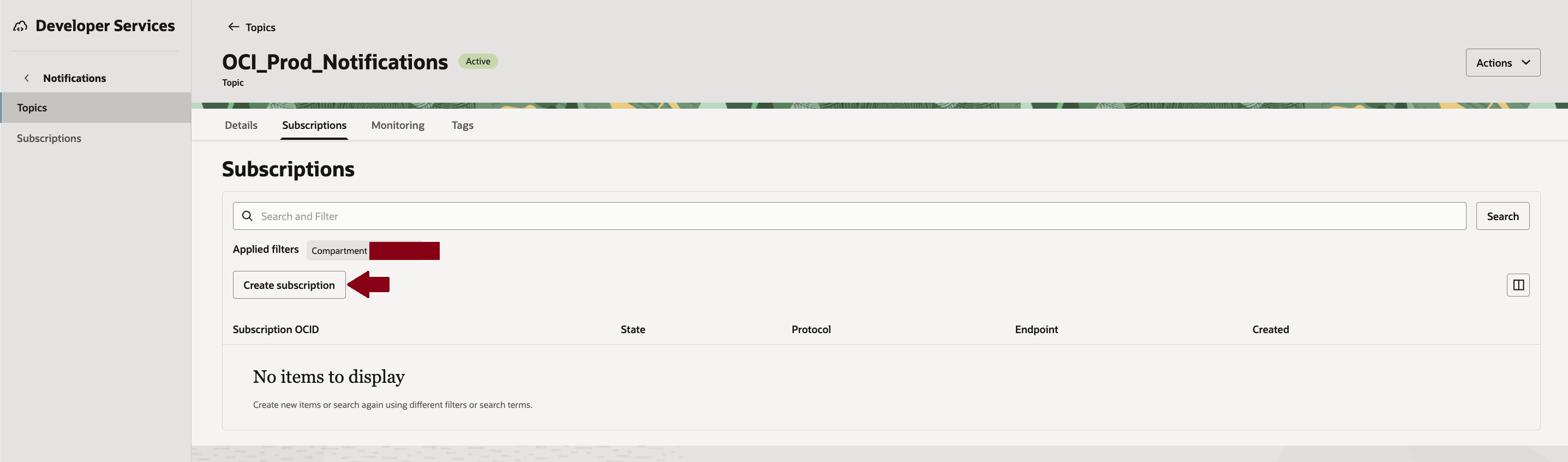
Now click on button “Create subscription”.
Select required subscription type, provide necessary details and then click on button “Create”
This help us to use created notification topics and related subscriptions to assign it to target alarms/events etc.
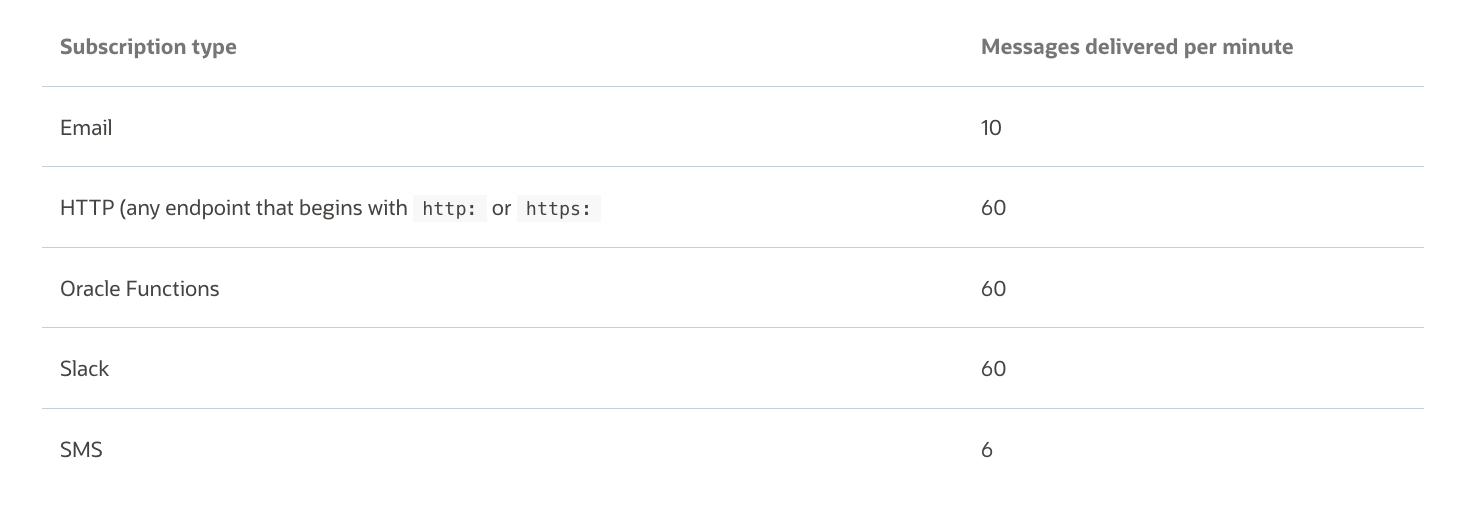
Message Delivery Limits for Subscriptions
Following are message delivery rates by subscription type. During a traffic spike, the message delivery might be delayed or dropped for subscriptions where the delivery rate exceeds the threshold.
Hope you will find this post very useful!!
Let me know for any questions and any further information in comments or LinkedIn.


 Adityanath's Database & Cloud Blog
Leave a comment