Dear Readers,
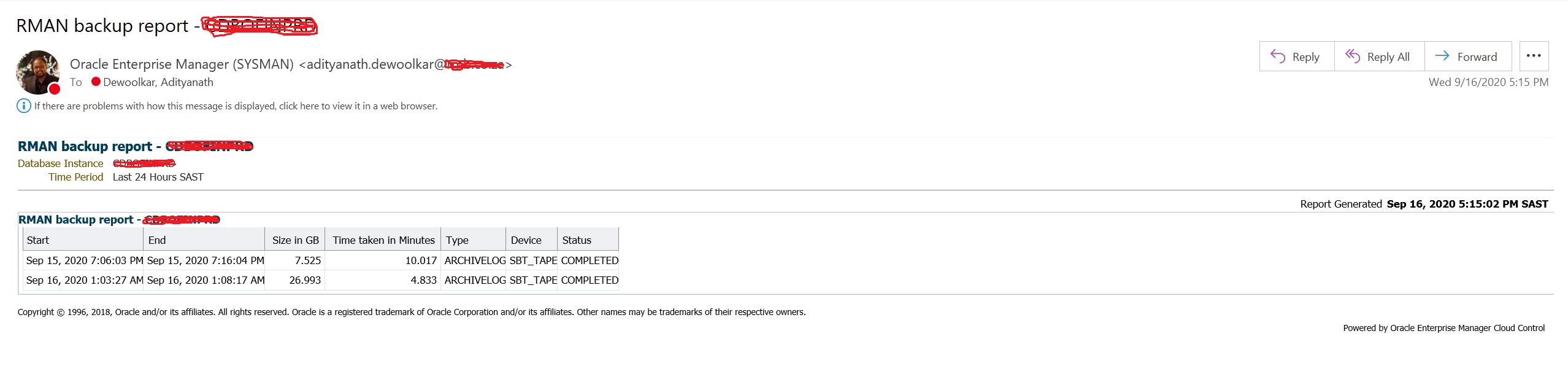
Recently one of BU person in my project requested us to send scheduled report for RMAN Backup completion for one of critical databases. As this requirement was from Business, I thought of having it simple & less techie. After exploring few options, I thought of using OEM reporting functionalities & found its really amazing.
This post will guide you on how to create custom information publisher report.
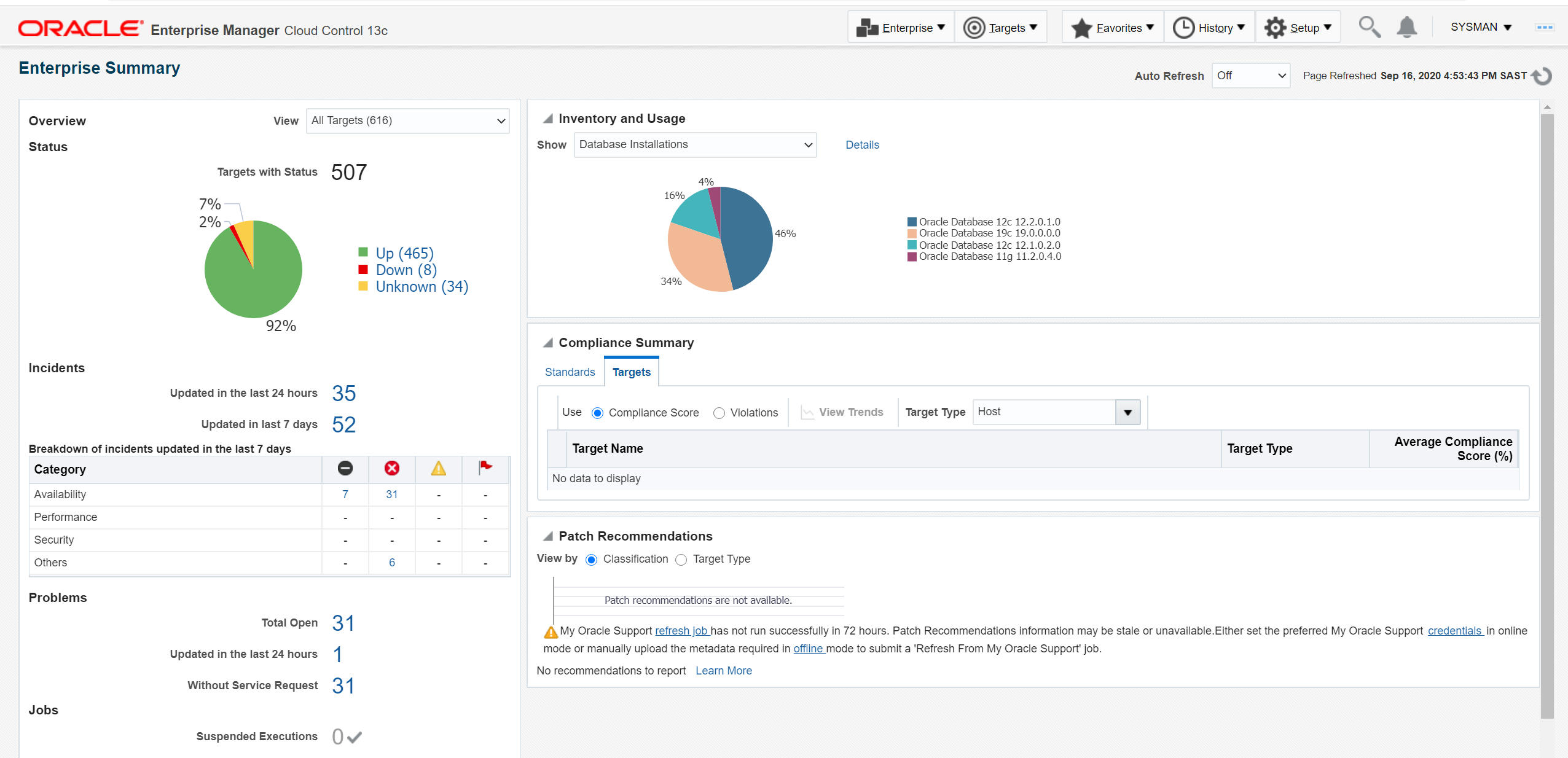
1. Login to OEM. This is how my home page looks:
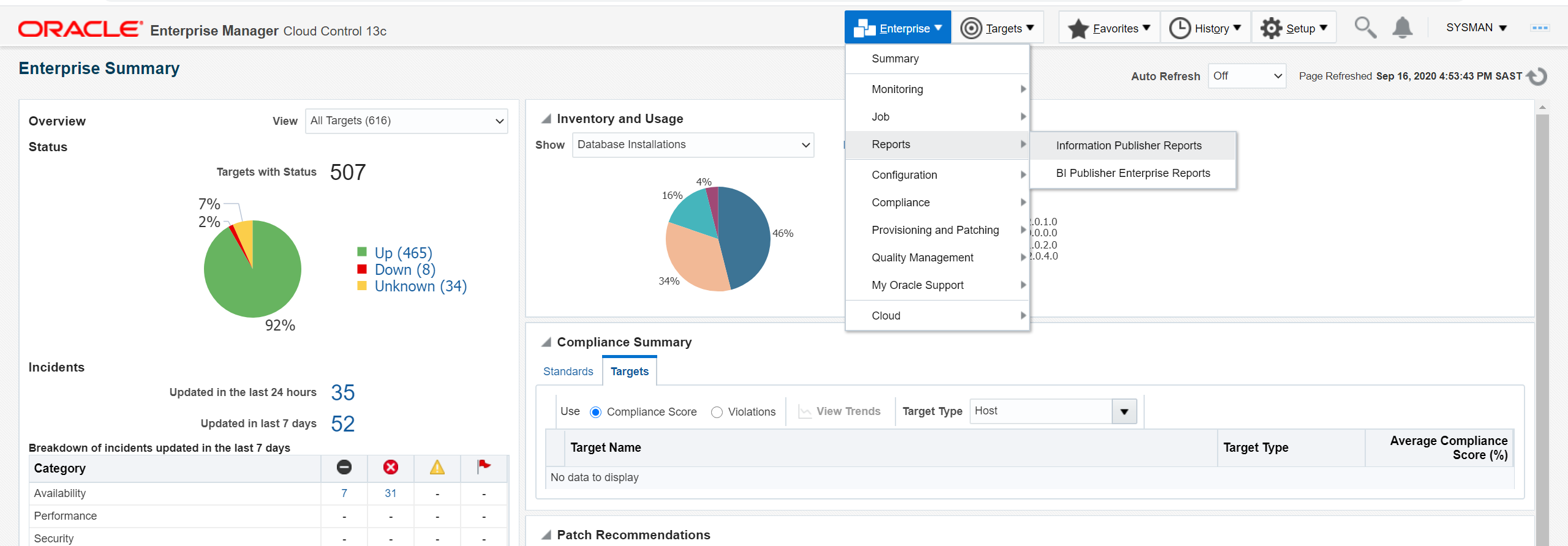
2. Click on Enterprise ==> Reports ==> Information Publisher Reports
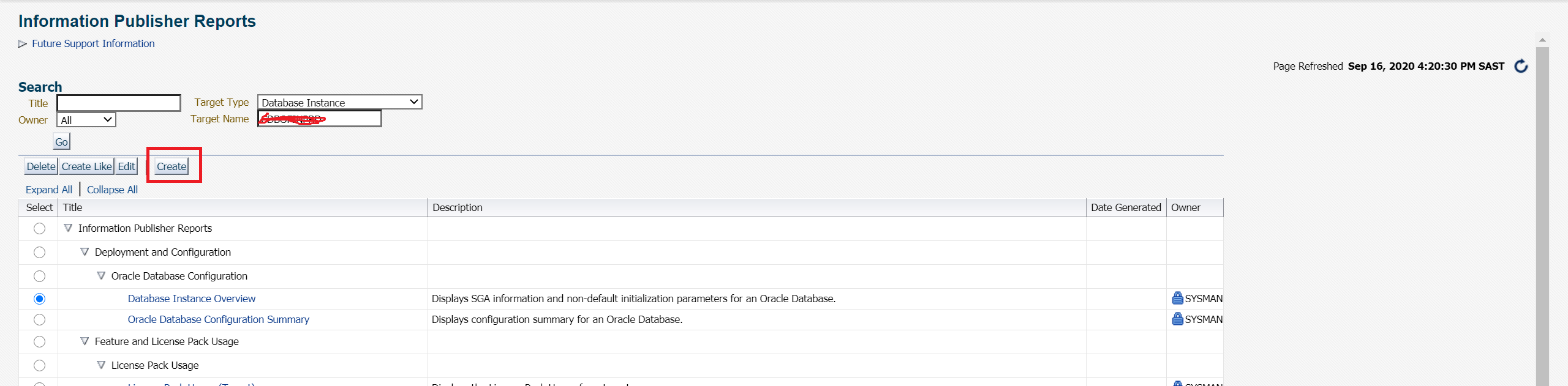
3. This is landing page for Information Publisher Reports. Click on “Create”.
4. Report creation basically has 4 steps: General, Elements, Schedule, Access.

5. Fill the details under “General” tab as per your requirement. Check the box “Run report using target privileges of report owner (SYSMAN)”

6. Click on “Elements” tab, click on “Add”:

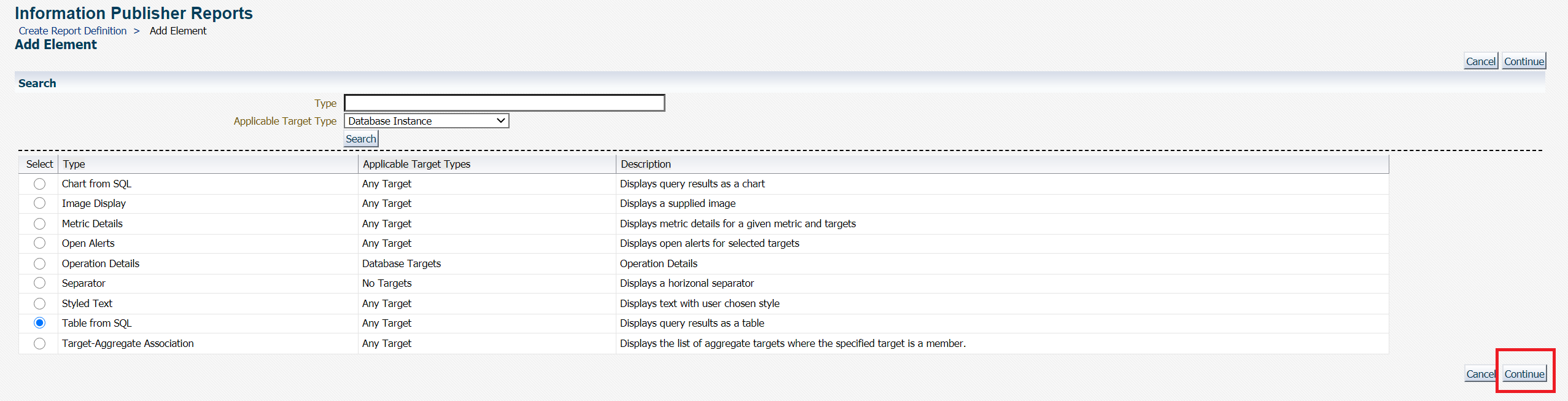
7. As I need to run a query against repository database, I will select “Table from SQL” & click on “continue”.
8. Click on “Set parameters” icon & configure your custom query as per your need. In my case, I am using the below & then click “Continue”
SELECT start_time as "Start",
end_time as "End",
output_bytes / 1024 / 1024 / 1024 as "Size in GB",
elapsed_Seconds / 60 as "Time taken in Minutes",
input_type as "Type",
output_device_type as "Device",
status as "Status"
FROM sysman.DB_BACKUP_HISTORY_E
WHERE target_GUID = '<GUID of your database>' -- you may need to query SYSMAN.EM_ALL_TARGETS to get these details.
and start_time>sysdate-1
ORDER BY start_time;


9. Click on “Preview” to see if you are getting desired results. If yes, click on “Return to Create Report Definition”.


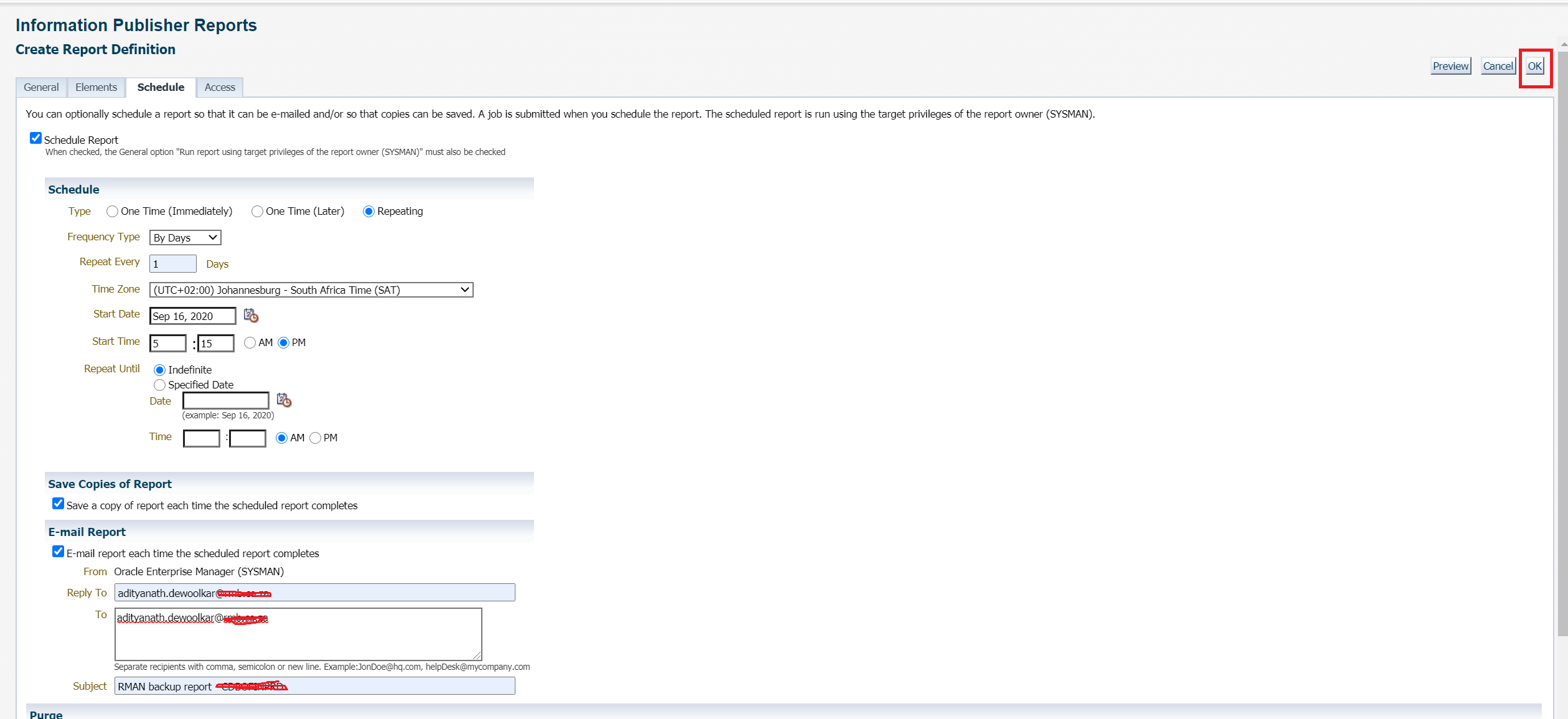
10. Click on “Schedule” tab & setup schedule as per your need. Once done click “OK”.
11. Your report is now ready.

12. Check for simple yet powerful report in your inbox 🙂
Hope u will find this post very useful.
Cheers
Regards,
Adityanath





 Adityanath's Database & Cloud Blog
Leave a reply to Abram Scarcia Cancel reply